Wi-Fi Connected but No Internet: How to Fix It
Few things are more confusing than full Wi-Fi bars and a page that will not load. When your Wi-Fi is connected but there is no internet, your device can talk to the router, but the data is not reaching the internet, or your device cannot turn website names into addresses. The good news is that this is usually easy to fix. Here are 10 quick fixes, starting with the simplest.
First, find out where the problem is
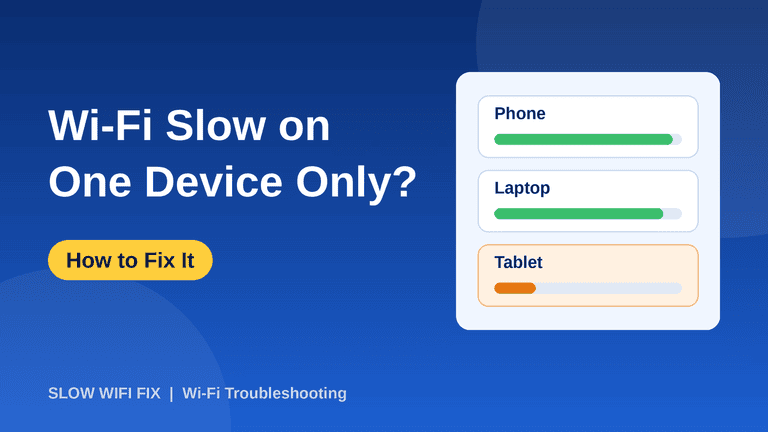
- Only one device has no internet: the problem is on that device. Focus on fixes 4, 6, 7, 8, and 9.
- Every device has no internet: the problem is the router, the modem, or your provider. Focus on fixes 1, 2, 3, 5, and 10.
- Try a cable if you can. If a computer connected with an Ethernet cable also has no internet, the problem is not your Wi-Fi.
1. Restart your modem and router
This solves a surprising number of cases. Unplug the modem and router, wait 30 seconds, plug the modem in first, then the router, and give them a few minutes to start. Our guide on how to restart a router the right way has the full steps.
2. Check the lights on your modem and router
Look for a light labeled Internet, WAN, or a globe symbol. If it is off, red, or orange, the router is not getting internet from your provider. The colors differ by brand, so check your manual. A steady light usually means the connection is fine.
3. Check for an outage
Use your phone’s mobile data to look at your provider’s website or app, or call them. If there is an outage in your area, you cannot fix it yourself, and you only need to wait.
4. Turn Wi-Fi off and on, then forget the network
On your device, switch Airplane mode on for ten seconds and off again. If that does not help, choose Forget for your Wi-Fi network and connect again with the password. This clears a damaged saved connection.
5. Check the cables
Make sure the cable from the wall socket reaches the modem, and that the cable from the modem is plugged into the router’s Internet (WAN) port, which is often a different color from the other ports. Push every plug in firmly, and try another cable if you have one.
6. Try another website and another device
If only one website will not open, the problem is that site, not your connection. If only one device has no internet while the others work, the fix is on that device, so continue with the steps below.
7. Change your DNS server
DNS works like a phone book. It turns website names into numbers. If your provider’s DNS has a problem, you will be connected but nothing will load. To switch to a public DNS on Windows 11:
- Open Settings → Network & internet → Wi-Fi and click your network’s Properties.
- Next to DNS server assignment, click Edit and choose Manual.
- Turn on IPv4, then enter 8.8.8.8 as the preferred DNS and 8.8.4.4 as the alternate (these are Google’s public DNS). You can also use 1.1.1.1 and 1.0.0.1 (Cloudflare).
- Click Save and test again.
On phones, look for Private DNS (Android) or the DNS option in your Wi-Fi network details (iPhone).
8. Renew your IP address and flush DNS (Windows)
Open the Start menu, type cmd, right-click Command Prompt, and choose Run as administrator. Then type these commands one at a time and press Enter after each:
ipconfig /releaseipconfig /renewipconfig /flushdns
Wait a few seconds after each command, then close the window and test again.
9. Turn off your VPN and proxy
A VPN or proxy that has stopped working can block all traffic, even when Wi-Fi looks fine. Disconnect or turn off your VPN app and check your browser or system for a proxy setting that you do not remember adding.
10. Update the router and call your provider
If every device has no internet and the lights look wrong, log in to the router settings and check whether the internet status says connected. Install any firmware update from the manufacturer. If nothing works, call your provider and tell them what you tried. They can test your line and reset your connection from their side.
Frequently asked questions
Why does my phone say “Connected, no internet”?
It means the phone is linked to the router, but the router is not giving it internet. The cause can be a router problem, an outage, a DNS problem, or a public Wi-Fi network that needs you to sign in through a login page first.
Is it my router or my internet provider?
If all your devices lose internet, the internet light looks wrong, and a cable connection also fails, the problem is the router, modem, or provider. If only one device is affected, it is that device.
Will a factory reset fix it?
Only as a last resort. Try a normal restart first, because a reset erases your settings.
Once your internet works again, check how fast it is with our guide on how to check your internet speed. If your connection keeps dropping, read what to do when Wi-Fi keeps disconnecting, and if it is slow, see why your Wi-Fi is so slow. Still stuck? Send us the details on our Contact page.