How to Check Your Internet Speed (and Understand the Results)
Before you try to fix a slow connection, you need to know how slow it really is. Learning how to check your internet speed takes about a minute and gives you real numbers instead of guesses. This guide shows you how to run an accurate test, what download, upload, and ping mean, and how to tell whether your results are good or a sign of a problem.
Quick answer: close other apps, run a speed test near your router (and once with a cable if you can), test three times, and compare the average to the speed in your plan.
How to run an accurate internet speed test
A speed test is only useful if the conditions are fair. Follow these steps to get results you can trust:
- Pause everything else. Stop downloads, streaming, cloud backups, and updates on all your devices.
- Turn off your VPN. A VPN can lower your speed and show the wrong location.
- Use one device. A laptop or phone works well, and a laptop with a network cable gives the most reliable result.
- Test close to the router first. Stand in the same room as the router to see the best speed your Wi-Fi can give.
- Run the test three times and write down each result. One test can be a fluke.
- Test at different times, for example in the morning and in the evening, because speeds often drop when many people are online.
Which speed test should you use?
Several free tools work well, and they use different servers, so results can vary a little. Popular choices include Speedtest by Ookla, Fast.com (from Netflix), and the Cloudflare speed test. Pick one, and use the same tool every time so you can compare results fairly. Open it in your browser, press the start button, and wait for the test to finish.
What the results mean
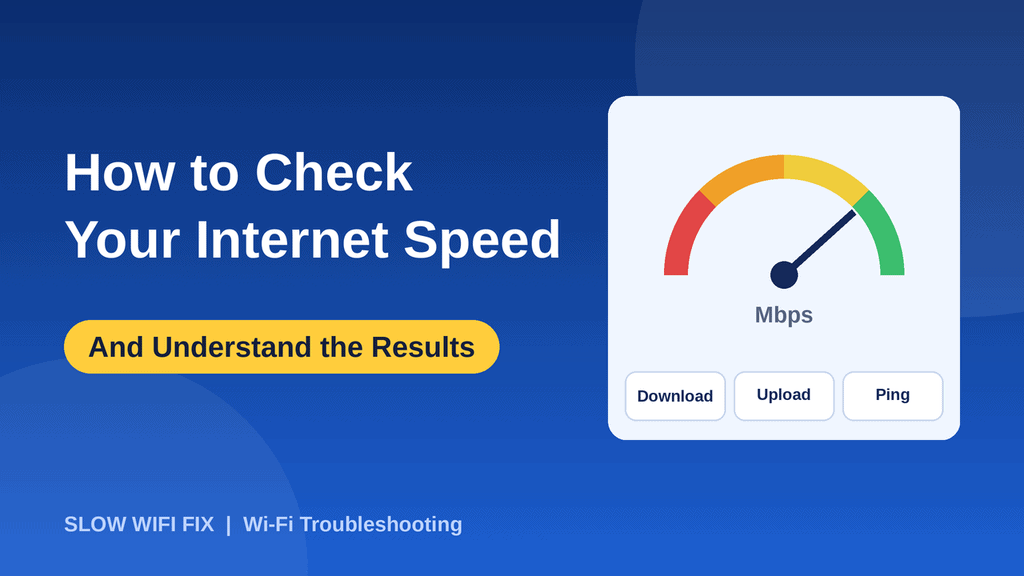
Most tests show three main numbers:
- Download speed (Mbps): how fast data arrives on your device. This matters for streaming, browsing, and downloads.
- Upload speed (Mbps): how fast your device sends data out. This matters for video calls, cloud backups, and posting large files.
- Ping or latency (ms): how long it takes for a small message to travel to a server and back. A lower number is better, and it matters most for gaming and video calls.
Some tests also show jitter (how much the ping changes) and packet loss (data that never arrives). High jitter or any packet loss can cause lag, freezing, and choppy calls, even when your download speed looks fine.
Mbps and MB/s are not the same
Internet speeds use megabits per second (Mbps), while many download windows show megabytes per second (MB/s). One byte has eight bits, so a 100 Mbps connection can download at about 12.5 MB/s at best.
What is a good internet speed?
It depends on what you do and how many people share the connection. This table gives a rough idea of what each activity needs:
| Activity | Rough speed needed |
|---|---|
| Email and web browsing | About 5 Mbps |
| HD video streaming (per stream) | About 5 to 8 Mbps |
| 4K video streaming (per stream) | About 15 to 25 Mbps |
| Video calls | About 3 to 10 Mbps (and good upload) |
| Online gaming | A low ping matters more than speed |
Add up what everyone at home uses at the same time. For example, two people streaming HD while another joins a video call needs a lot more than one person browsing. For gaming, a ping under about 50 ms is usually comfortable, and lower is better.
How to compare your result with your plan
Your internet provider usually advertises speeds as “up to” a certain number, so you will often see a little less than the headline figure. The test with a network cable shows what your line really delivers. Wi-Fi is normally a bit slower than a cable because of distance, walls, and interference.
- Cable result close to your plan: your internet line is fine, and any problem is likely your Wi-Fi.
- Cable result far below your plan, again and again: contact your provider and show them your test results.
- Good near the router, poor in other rooms: you have a Wi-Fi coverage problem, not an internet problem.
Test every room and keep a simple record
To find weak spots, walk through your home and run a test in each important room. Write the results in a small table like this one:
| Room | Download | Upload | Ping |
|---|---|---|---|
| Next to router | |||
| Living room | |||
| Bedroom |
If the numbers drop sharply in certain rooms, the router position is a good place to start. Read our guide on where to place your router for the best spot.
Why your speed test result may be low
- You are far from the router or there are thick walls in the way.
- Other devices are using the connection for streaming, updates, or backups.
- You are on the slower band. Our guide on 2.4 GHz vs 5 GHz Wi-Fi explains which band to use.
- The router needs a restart. Follow our guide on how to restart a router and test again.
- An old router or old device cannot reach the speed your plan offers.
- A VPN or browser extension is slowing the test.
If your results are low, our guide on why your Wi-Fi is so slow walks you through 12 easy fixes. And if your connection drops instead of just being slow, read what to do when Wi-Fi keeps disconnecting.
Frequently asked questions
Is 100 Mbps fast enough?
For most homes, yes. 100 Mbps is enough for several people streaming HD video, browsing, and making video calls at the same time. Large households with many 4K streams, gamers, and heavy downloads may want more.
Why is my speed test lower than what I pay for?
Providers advertise the maximum speed, and real results are often lower because of Wi-Fi, other devices, the time of day, and the test server. A cable test shows how much your line really delivers.
Which speed test is the most accurate?
No single test is perfect. Pick one trusted tool, use it the same way every time, and compare results over several tests instead of relying on one.
Why is my upload speed so much lower than my download speed?
That is normal for most home plans. Providers usually give much more download than upload, because most people download more than they send.
How often should I test my speed?
Test when you notice a problem, after you change your router or plan, and once in a while to check that your provider delivers what you pay for.
Got results that look strange, or not sure what they mean? Send us your numbers on our Contact page, and we will help you read them.