Wi-Fi Slow on One Device Only? 9 Fixes That Work
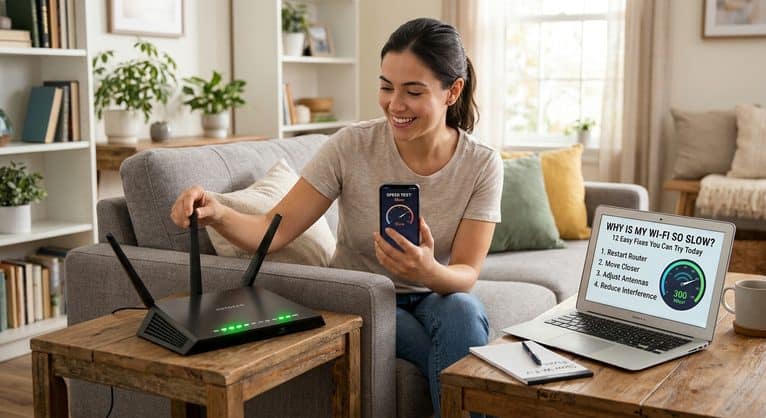
Your phone flies, your TV streams perfectly, and then one laptop crawls on the same network. When your Wi-Fi is slow on one device but fine on the others, the good news is that your router and your internet are probably fine. The problem is that single device, and you can usually fix it in a few minutes. Here are 9 fixes, starting with the easiest.
First, confirm it is only that device
- Run a speed test on the slow device, standing in the same spot as a fast one.
- Run the same test on another device, using the same tool.
- If the other device is much faster, the problem is the slow device. If both are slow, read why your Wi-Fi is so slow instead.
Our guide on how to check your internet speed explains how to get fair results.
1. Restart the device
A full restart clears memory and stuck processes. Turn the device completely off, wait a few seconds, and turn it on again. It sounds simple, but it solves many cases.
2. Turn Wi-Fi off and on, or use Airplane mode
Switch Airplane mode on for ten seconds and off again. This refreshes the device’s Wi-Fi connection without changing any settings.
3. Forget the network and reconnect
A damaged saved connection can slow a device. Open the Wi-Fi settings, choose your network, select Forget, and then connect again by typing the password.
4. Check which band the device uses
Many routers broadcast a 2.4 GHz and a 5 GHz network. A device on 2.4 GHz is often slower and more affected by interference. If the device supports it and is close to the router, connect to the 5 GHz network. Read 2.4 GHz vs 5 GHz Wi-Fi to understand the difference.
5. Update the system and the Wi-Fi driver
Old software can cause slow and unstable Wi-Fi. Install pending updates on phones, tablets, and TVs. On a Windows laptop, open Device Manager, expand Network adapters, right-click your Wi-Fi adapter, and choose Update driver. You can also download the latest Wi-Fi driver from your laptop maker’s website.
6. Look for background downloads
A single app can use all your bandwidth: a game update, cloud backup, or a big file sync. Check which apps are using the network. On Windows, open Task Manager → Performance or the Processes tab and sort by Network. Pause or close anything that is downloading.
7. Turn off your VPN and check your browser
A VPN can cut your speed, sometimes by a lot. Turn it off for a test. If only one browser is slow, disable extensions, clear the cache, or try another browser.
8. Reset the network settings or renew the connection
On Windows, you can reset network components and renew your address. Our guide on what to do when Wi-Fi is connected but there is no internet shows the commands to flush the DNS cache and renew the IP address. On a phone, you can find Reset network settings in the system settings, but it removes saved Wi-Fi networks, so use it as a last resort.
9. Check the device itself
- Age: older devices may only support older Wi-Fi standards or only the 2.4 GHz band, which limits their speed.
- Distance and cases: a thick phone case, a metal desk, or a weak position can block the signal.
- Power-saving mode: some power modes reduce Wi-Fi performance, especially on laptops.
- Malware: unusual slowness can come from unwanted software, so run a scan with your security app.
Test the device on another network
To be sure the device is the problem, connect it to your phone’s hotspot or to a friend’s Wi-Fi. If it is slow there too, the device is at fault. If it is fast, the issue is something in your home network that affects this device in particular, such as signal or the band.
When a weak signal is the real cause
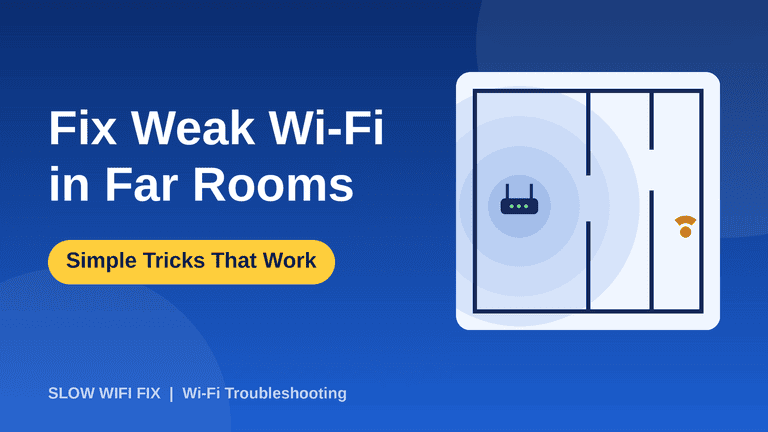
Sometimes the slow device is just the one in the farthest room. Compare its speed next to the router. If it is fast there, you have a coverage problem, not a device problem. Read how to fix weak Wi-Fi in bedrooms and far rooms and where to place your router.
Frequently asked questions
Why is my laptop slow on Wi-Fi but my phone is fast?
Usually a driver, a power setting, a VPN, or a background program on the laptop. The laptop’s Wi-Fi card may also be older than your phone’s.
Why is only my smart TV buffering?
TVs often sit far from the router and use the 2.4 GHz band. Move the router, switch to 5 GHz, or use an Ethernet cable if you can.
Can one device slow down the whole network?
Yes, if it uses a lot of bandwidth, for example with a big download. In that case, the other devices slow down too.
Should I replace the device?
Only after you tried the fixes above. If the device is very old and cannot use the 5 GHz band, a USB Wi-Fi adapter or a cable can help.
Still stuck with one slow device? Tell us the device model and what you tried on our Contact page. If it drops instead of being slow, read what to do when Wi-Fi keeps disconnecting.