How to Find Out Who Is Using Your Wi-Fi
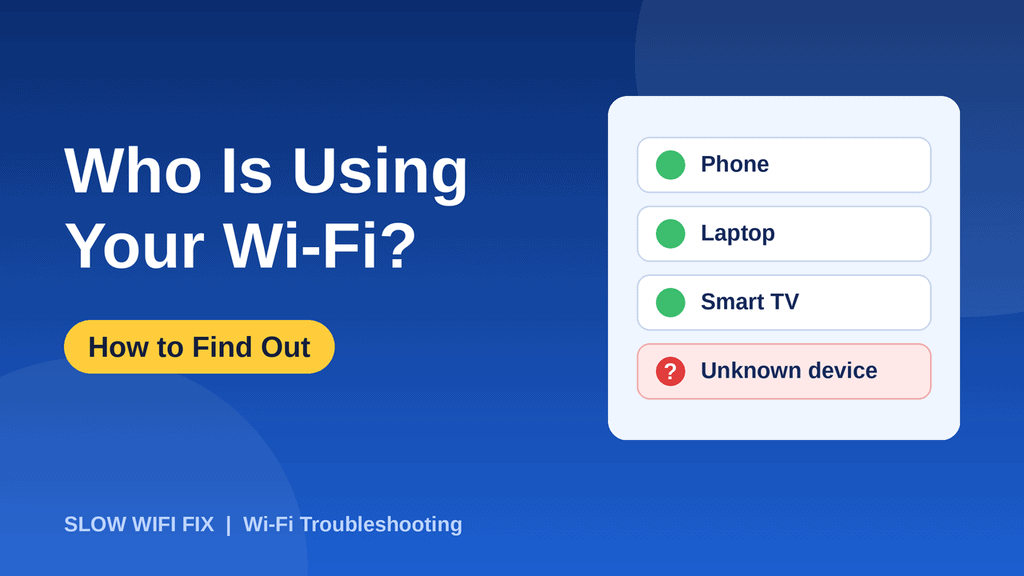
If your internet feels slower than it should, you may wonder who is using your Wi-Fi. A neighbor, a guest who never left, or a forgotten device could be sharing your connection. The good news is that you can check in a few minutes, and you do not need any special skills. This guide shows you how to see every device on your network, how to tell which ones belong to you, and what to do about the rest.
Signs that someone else may be on your Wi-Fi
- Your internet is slower than usual, with no clear reason.
- The router’s Wi-Fi light blinks a lot while all your own devices are idle.
- You see device names that you do not recognize in your router.
- You never changed the default Wi-Fi password.
Slow internet does not always mean a stranger, so rule out other causes too. See our guide on why your Wi-Fi is so slow.
Method 1: check the router’s device list
- Open a browser and type your router’s address (often 192.168.1.1 or 192.168.0.1). It is printed on a sticker on the router.
- Log in with the admin username and password.
- Look for Connected devices, Attached devices, Client list, Device list, or DHCP clients. It is often on the home page or under a Status or LAN menu.
- Write down the list. For each device, you will see a name, an IP address, and a MAC address (a unique ID).
Method 2: use your router’s phone app
Many routers and mesh systems have an app with a clear list of connected devices, sometimes with the device type and the option to pause or block each one. This is usually the easiest method if your router has an app.
Method 3: use a network scanner app
Free apps such as Fing scan your Wi-Fi network and list the devices they find, often with the brand name. Use apps from the official app stores, and remember that they only see your network, not other people’s.
How to recognize your own devices
Many of your devices show confusing names, and that does not mean a stranger is connected. Smart TVs, printers, game consoles, smart bulbs, and cameras often have generic names. To identify them:
- Make a list of everything at home that uses Wi-Fi, including phones, laptops, tablets, TVs, speakers, plugs, cameras, and consoles.
- Look for the brand in the device name. For example, a name that contains your TV or phone brand is probably yours.
- Turn Wi-Fi off on your own devices one by one (or switch them off), refresh the router’s list, and see which entry disappears.
- The entries that remain after you turned everything off are the ones to look into.
What to do if you find a stranger
- Change your Wi-Fi password. This is the most effective step, because everyone is disconnected and only people with the new password can join. Follow our guide on how to change your Wi-Fi password.
- Use WPA2 or WPA3 security. Do not use WEP or an open network.
- Turn off WPS. This feature is convenient, but it can be a weak point. You will find it in the Wi-Fi settings.
- Change the router’s admin password if you still use the default one.
- Update the router firmware from the settings page or the manufacturer’s website.
- Block the device (optional). Some routers let you block a device by its MAC address, but changing the password is stronger.
Give guests their own network
Most modern routers have a Guest network option. It gives visitors internet access without your main password and keeps them away from your own devices. It is also easy to turn off or to change the password later.
Frequently asked questions
Can a neighbor really use my Wi-Fi?
Yes, if your password is weak, shared widely, or if you use no password at all. A strong password with WPA2 or WPA3 makes it very unlikely.
Does a stranger on my Wi-Fi slow my internet?
It can, because they share your bandwidth. The effect depends on what they do, such as streaming or downloading.
Why do I see devices that I do not own?
Often these are your own gadgets with generic names, or devices from visitors who joined earlier. Check them one by one before you decide that someone is stealing your Wi-Fi.
How can I check my speed after removing a stranger?
Run a test before and after you change your password. Our guide on how to check your internet speed shows how to get fair results.
Found an unknown device and unsure what it is? Send us the name and brand shown in your router on our Contact page, and we will help you work it out.