Wi-Fi Keeps Disconnecting? 10 Fixes That Actually Work
Wi-Fi keeps disconnecting, and it is frustrating. Your video call freezes, your download stops, and you have to reconnect. The cause is not always obvious, but most drops come from a small number of things you can fix yourself. This guide gives you 10 fixes, from the quickest to the more advanced.
Quick answer: restart your router and the affected device, forget the Wi-Fi network and reconnect, then move closer to the router. If it only happens on one computer, update the Wi-Fi driver and turn off the adapter’s power-saving option.
First, find out where the problem is
Before you try fixes, answer one question: does it happen on all your devices or only one?
- All devices disconnect: the problem is probably the router, your signal strength, or your internet service. Focus on fixes 1, 4, 7, 8, 9, and 10.
- Only one device disconnects: the problem is probably that device’s settings or Wi-Fi driver. Focus on fixes 2, 3, 5, and 6.
1. Restart your router and modem
A restart clears small glitches and forces a clean reconnection to your provider. Unplug the router (and modem), wait 30 seconds, plug the modem back in first, then the router, and give it 2 to 3 minutes to start. Our guide on how to restart a router the right way explains the steps and the difference between a restart and a factory reset.
2. Restart the device that keeps disconnecting
Turn the phone, laptop, or TV completely off and on again. You can also try switching Airplane mode on for ten seconds and then off. This refreshes the device’s Wi-Fi connection without changing any settings.
3. Forget the network and reconnect
A saved connection can become corrupted, especially after you change your Wi-Fi password or the router updates itself.
- Open your device’s Wi-Fi settings.
- Select your network and choose Forget (on Windows, choose Forget from the network’s settings).
- Reconnect by selecting the network and typing the password again.
Check the password carefully, since one wrong character can cause repeated failed connections.
4. Check your signal strength and move closer
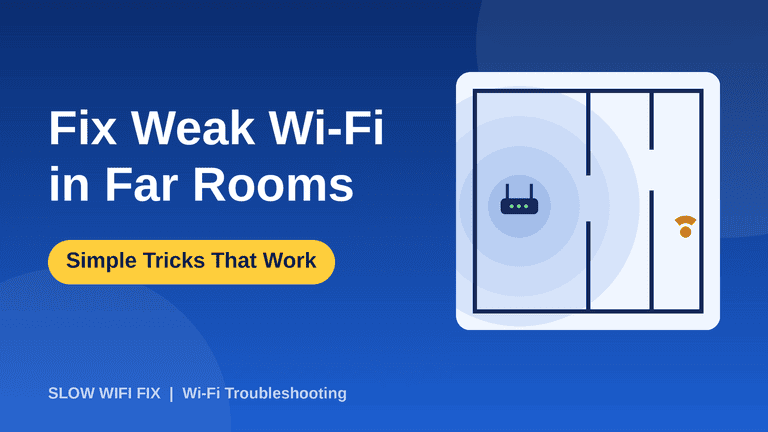
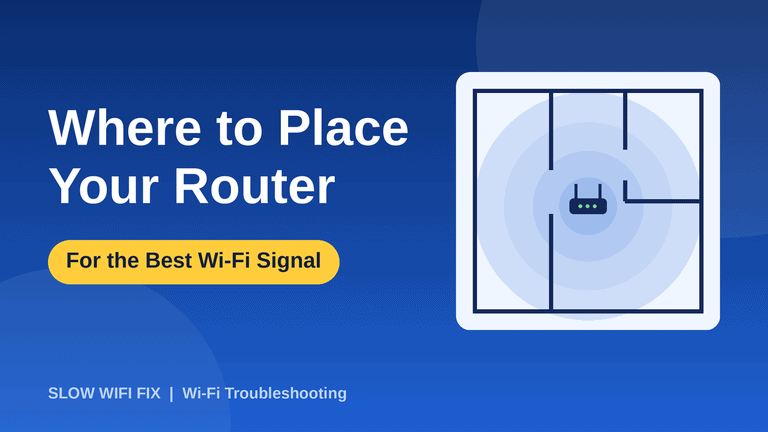
If the Wi-Fi only drops in certain rooms, your signal is probably too weak there. Walls, floors, mirrors, and large appliances all reduce the signal. Test by standing near the router. If the connection becomes stable, you have a coverage problem. Move the router to a more central, raised spot, or consider a Wi-Fi extender or a mesh system for far rooms.
5. Turn off Wi-Fi power saving on your computer
Windows can switch off the Wi-Fi adapter to save power, which sometimes causes random drops, especially on laptops. To change this:
- Right-click the Start button and open Device Manager.
- Expand Network adapters and double-click your Wi-Fi adapter (its name usually includes “Wireless” or “Wi-Fi”).
- Open the Power Management tab.
- Untick Allow the computer to turn off this device to save power.
- Click OK and restart the computer.
On a phone, look for battery-saver or “adaptive connectivity” options in the settings, since some of them interfere with Wi-Fi when the screen is off.
6. Update your Wi-Fi driver and system
An outdated or faulty driver is a very common cause of random Wi-Fi drops on laptops. In Device Manager, right-click your Wi-Fi adapter and choose Update driver. If that does not help, check the website of your laptop maker for the latest Wi-Fi driver for your exact model. On phones, tablets, and TVs, install any pending system updates, since they often include Wi-Fi fixes.
7. Change the Wi-Fi band or channel
If many nearby networks use the same channel as yours, the interference can cause drops. Log in to your router settings, find the Wi-Fi section, and try these changes one at a time:
- Set the channel to Auto, or try a different channel. On 2.4 GHz, channels 1, 6, and 11 are the most common choices.
- If your router has a separate 5 GHz network, connect to it. It is usually less crowded, although its range is shorter.
- Move the router away from microwaves, cordless phones, and baby monitors.
8. Update your router’s firmware
Router makers release firmware updates that fix bugs, including connection drops. Look for a firmware or update option in your router’s settings, or check the manufacturer’s official website for your exact model. Never turn the router off during an update.
Careful: only download firmware from your router manufacturer’s official website or the router’s own settings page.
9. Check for too many devices or address conflicts
If dozens of phones, TVs, smart speakers, and cameras share the same network, an older router can struggle. Look at the list of connected devices in your router settings and disconnect or remove devices you no longer use. Restarting the router also refreshes the addresses it hands out, which can fix rare cases where two devices end up with the same address.
10. Rule out cables, hardware, and your provider
If nothing has helped, look at the basics:
- Check that the cables between the wall socket, modem, and router are firm and not damaged.
- Look at the router lights. A blinking or red internet light, or a light that turns off when the drops happen, points to a problem with the line or provider.
- Test with an Ethernet cable. If the wired connection also drops, the problem is your internet service, not your Wi-Fi.
- If your router is more than five years old, it may be failing or too weak for today’s devices.
If the problem continues, contact your internet provider and tell them what you have already tried. They can test your line and check for outages.
Still disconnecting? Try a network reset (last resort)
On Windows, you can reset all network settings from Settings → Network & internet → Advanced network settings → Network reset. This removes all saved Wi-Fi networks and returns your network adapters to their default settings, so you will need to enter your Wi-Fi password again. Use it only after trying the fixes above.
Frequently asked questions
Why does my Wi-Fi disconnect every few minutes?
The most common causes are a weak signal, interference from other networks or devices, an outdated Wi-Fi driver, and power-saving settings. Starting with a router restart and moving closer to the router will tell you quickly whether signal strength is the cause.
Why does my Wi-Fi disconnect only at night?
In the evening many people in your area use the internet and their own Wi-Fi at the same time, which increases interference and puts more load on your provider’s network. Switching to the 5 GHz band or changing the channel can help.
Why does Wi-Fi disconnect only on my laptop?
If other devices stay connected, the cause is most likely the laptop’s Wi-Fi driver or power-saving settings. Fixes 5 and 6 above solve most of these cases.
Can an old router cause disconnections?
Yes. Routers wear out and can overheat, and older models often cannot handle many devices at once. If yours is more than five years old and the problem keeps coming back, replacing it is worth considering.
Did one of these fixes work for you? If you are still stuck, send us the details on our Contact page. For other speed problems, you can also read why your Wi-Fi is so slow and how to fix it.